A website rarely breaks in one dramatic moment. It wears down quietly: a plugin falls behind, a form stops sending, a page gets slower, a license expires. None of it is hard to prevent. It just needs a routine.
This checklist is that routine. It’s written for owners of WordPress websites, with plain-English tasks grouped by how often to do them. It’s the same kind of routine I follow for the sites I look after every month.
Use it to maintain your site yourself, or to check what a maintenance plan should cover.
Key Takeaways
- Weekly: a quick look. Visit the site, test the main form and check for alerts.
- Monthly: the core routine. Back up, update, check the live site, then review security and speed.
- Quarterly: test a backup restore, remove unused plugins and old users and check your content is still accurate.
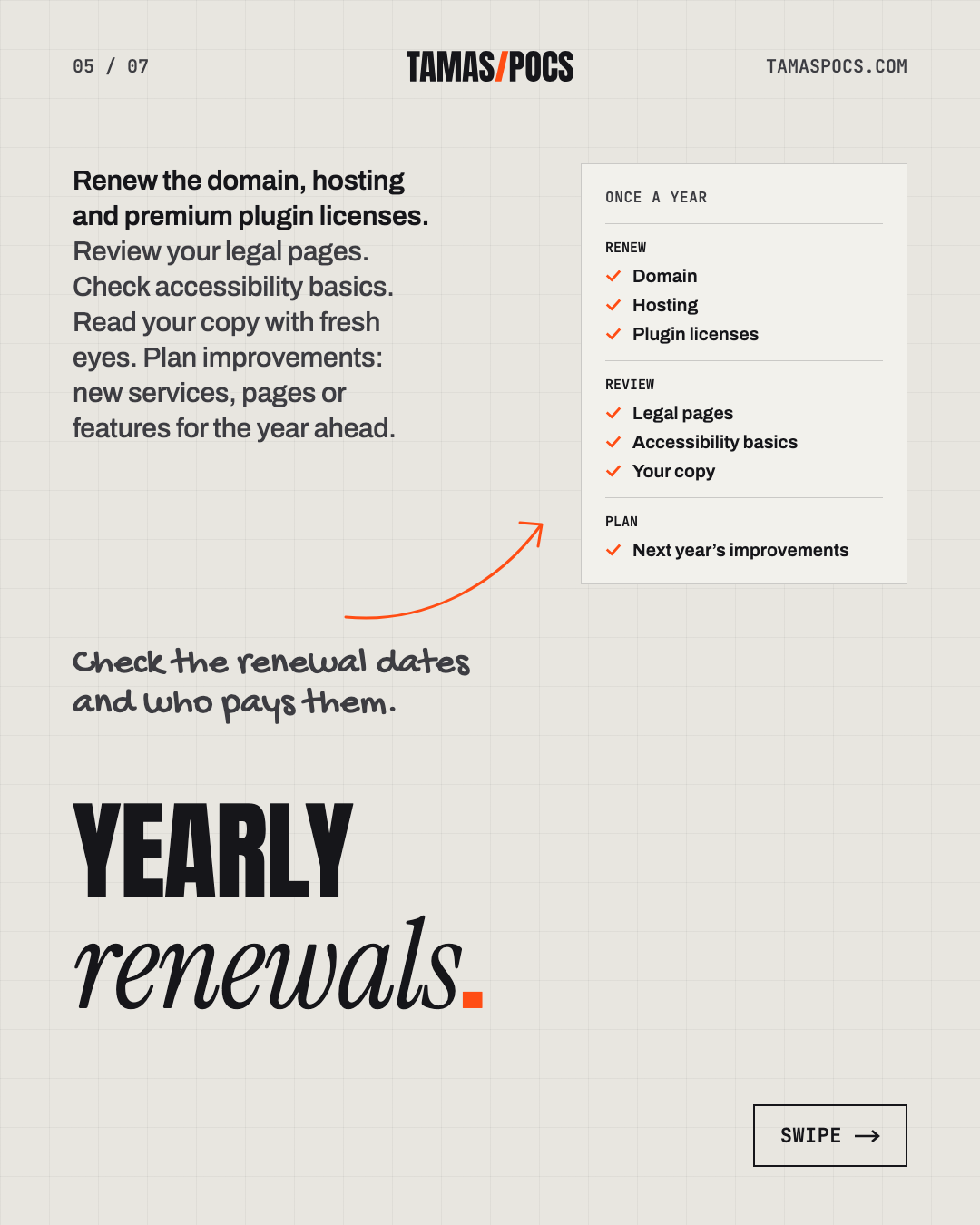
- Yearly: renew the domain, hosting and licenses. Review your legal pages, copy and design.
- Always back up before you update. It’s the one rule that turns a broken update into a small problem.
Before You Start
You’ll need a few things within reach before the first round:
- An admin login to your WordPress site.
- Access to your hosting account, or at least to its backup tool.
- A backup method that stores copies somewhere other than your server.
- Google Search Console, a free tool that shows search problems on your site.
- Google PageSpeed Insights, a free tool that tests how fast your pages load.
- A simple log. A note or spreadsheet where you write down what you did and when.
The log sounds like extra work. It’s what saves you when something breaks and you need to know what changed.
Weekly Checklist (10 Minutes)
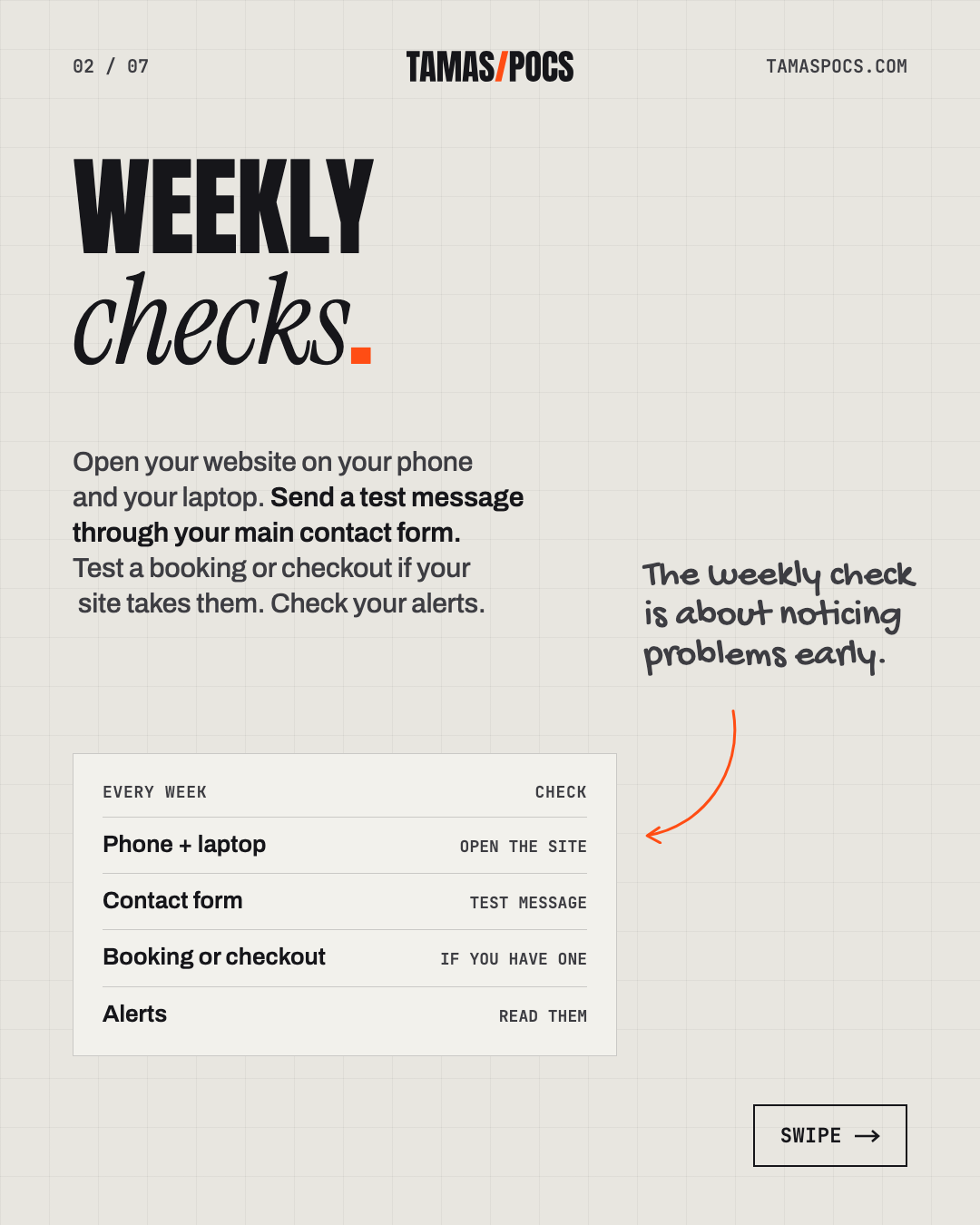
The weekly check is about noticing problems early, not fixing everything:
- ☐ Open your website on your phone and your laptop. Does the homepage load normally?
- ☐ Send a test message through your main contact form. Did it arrive?
- ☐ Test a booking or checkout if your site takes them.
- ☐ Check your alerts: uptime monitoring, your security plugin and any emails from your host.
- ☐ Look at available updates in the WordPress dashboard. Note any marked as security fixes.
If a critical security update appears, don’t wait for the monthly round. Attacks can be fast. For heavily exploited WordPress vulnerabilities, the weighted median time to the first attack was 5 hours after disclosure (Patchstack, 2026).
Monthly Checklist (About an Hour)
This is the core of website maintenance. Do the steps in this order:
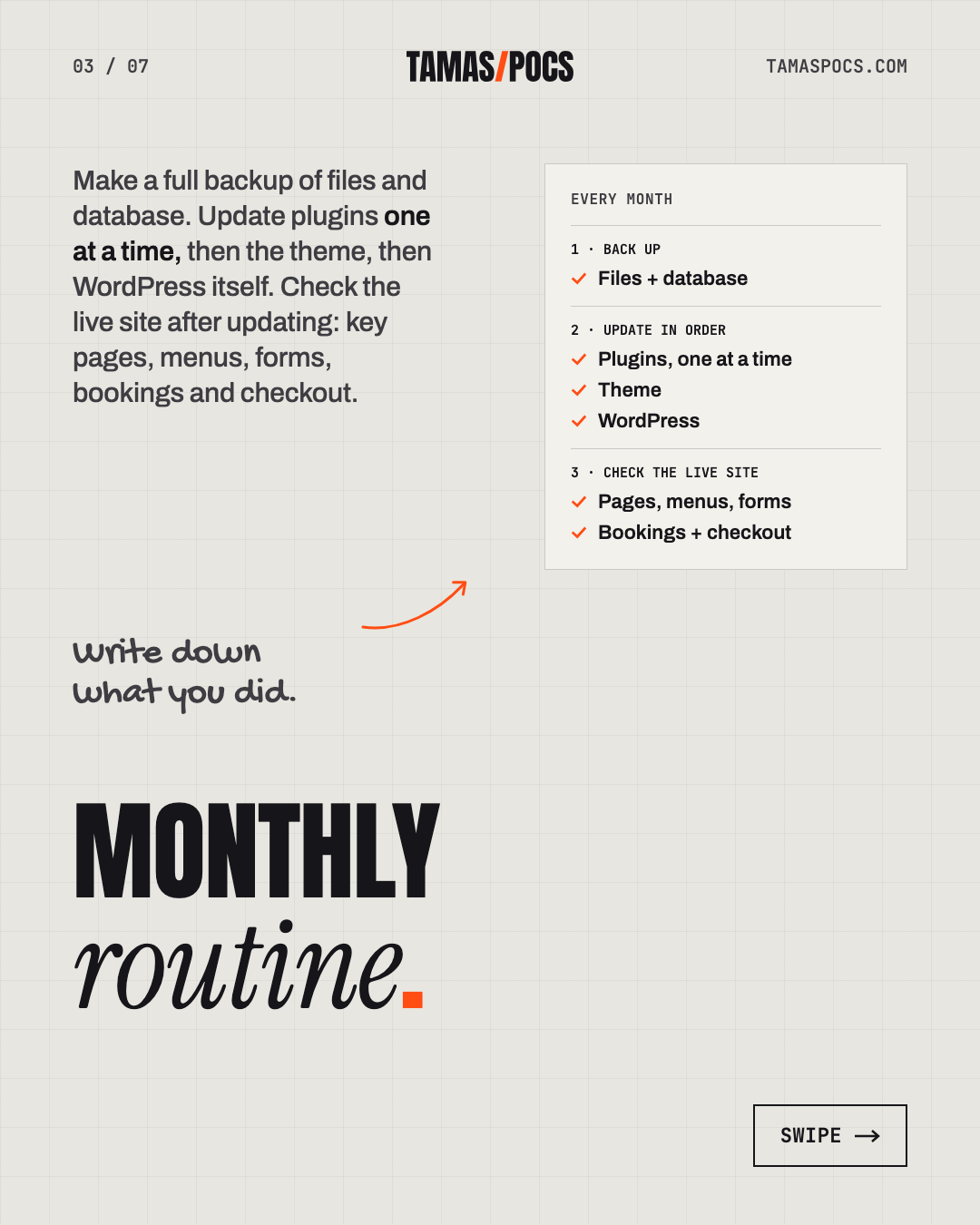
- ☐ Make a full backup of files and database. Check it finished.
- ☐ Update plugins one at a time, then the theme, then WordPress itself.
- ☐ Check the live site after updating: key pages, menus, forms, bookings and checkout.
- ☐ Roll back if something broke. Restore the backup or the previous plugin version, then look for a fix.
- ☐ Run a security scan with your security plugin and review anything it flags.
- ☐ Test your speed in PageSpeed Insights on your most important pages.
- ☐ Check Search Console for new errors, pages that dropped out of Google or broken links.
- ☐ Delete spam comments and form submissions.
- ☐ Check the SSL certificate is valid, so visitors don’t see a security warning.
- ☐ Write down what you did in your log.
Most of the risk sits in plugins. In 2025, 91% of newly found WordPress vulnerabilities were in plugins and 9% in themes. Only 6 were in WordPress core (Patchstack, 2026). That’s why updating WordPress alone isn’t enough.
Quarterly Checklist
Every three months, look a little deeper:
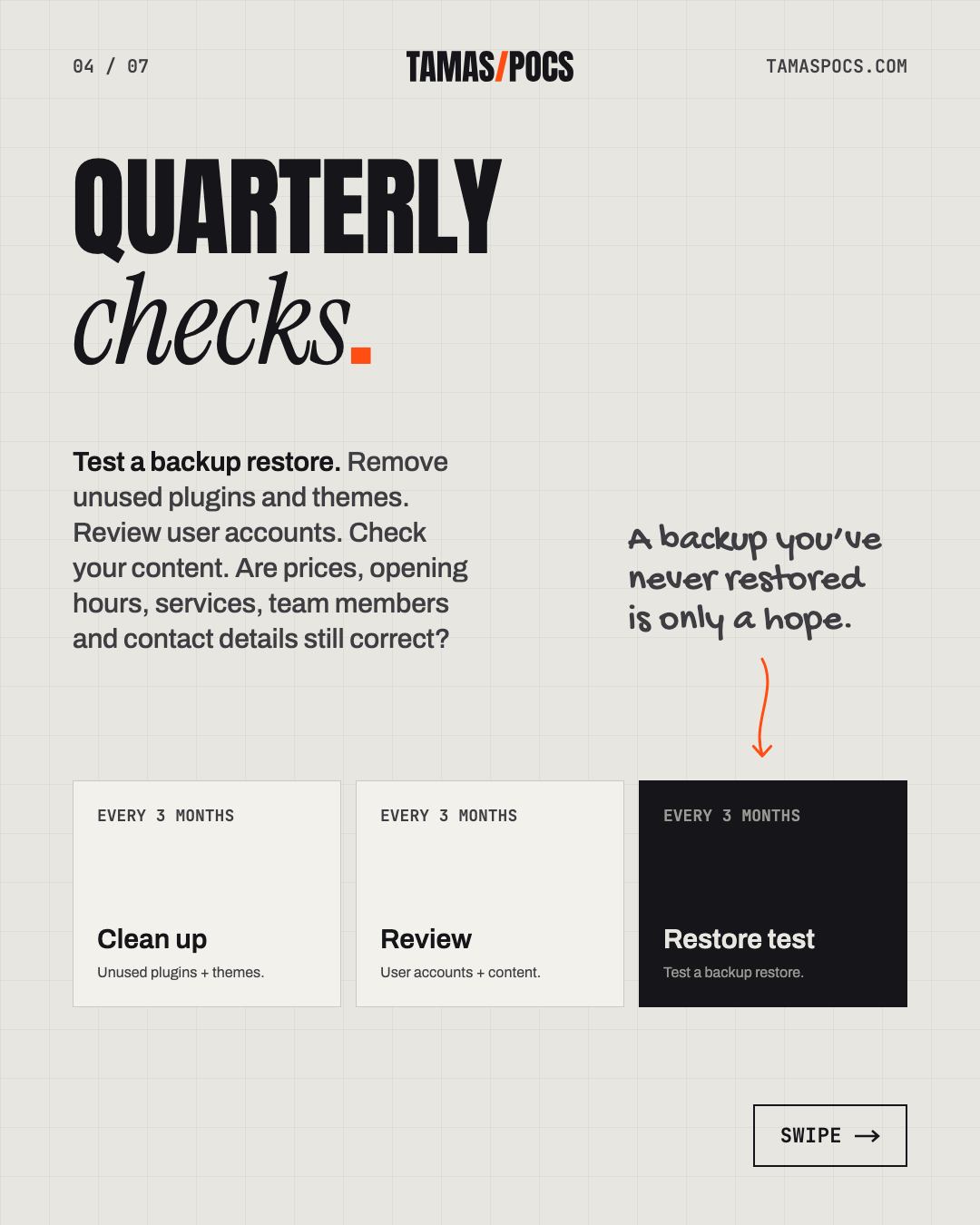
- ☐ Test a backup restore. A backup you’ve never restored is only a hope. Restore it to a staging copy if your host offers one.
- ☐ Remove unused plugins and themes. Deactivated plugins can still be a security risk.
- ☐ Review user accounts. Remove old admins, former staff and anyone who no longer needs access.
- ☐ Update passwords for admin accounts and turn on two-factor login if you can.
- ☐ Check your content. Are prices, opening hours, services, team members and contact details still correct?
- ☐ Review your analytics. Which pages bring visitors and inquiries? Which don’t?
- ☐ Ask your host about your PHP version. Older versions stop getting security fixes.
Yearly Checklist
Once a year, step back and look at the whole site:
- ☐ Renew the domain, hosting and premium plugin licenses. Check the renewal dates and who pays them.
- ☐ Review your legal pages. Make sure the privacy policy and cookie notice match what the site actually does.
- ☐ Check accessibility basics: readable text, enough contrast, alt text on images and forms you can use with a keyboard.
- ☐ Read your copy with fresh eyes. Does it still describe your business, your prices and your ideal clients?
- ☐ Look at the design on new devices. Does it still feel current and work well on today’s phones?
- ☐ Plan improvements. New services, pages or features for the year ahead.
Before Every Update
Keep this short list next to the monthly routine:
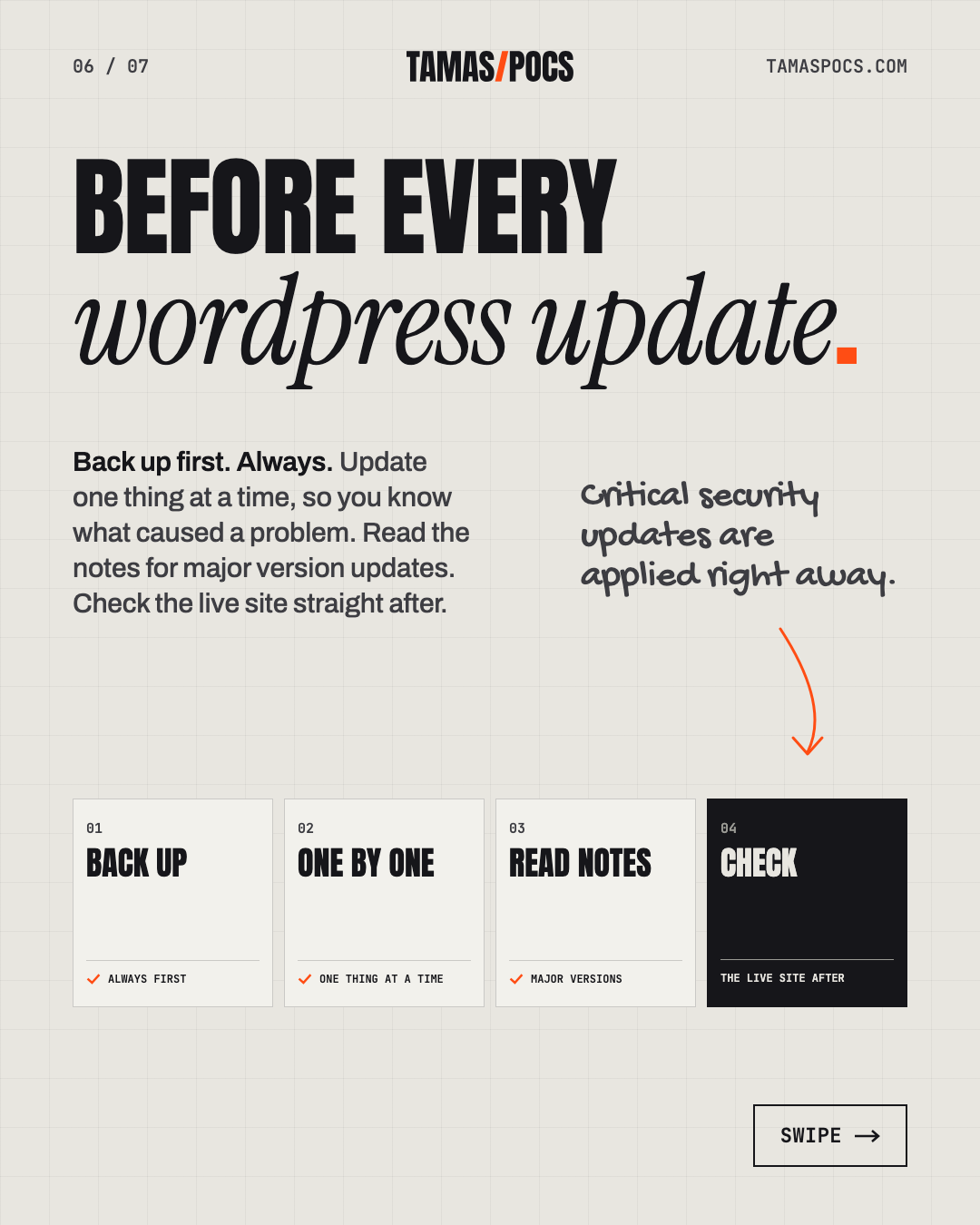
- Back up first. Always.
- Update one thing at a time, so you know what caused a problem.
- Read the notes for major version updates. They sometimes need extra steps.
- Check the live site straight after.
- Don’t update on a Friday evening or right before a busy period, unless it’s a critical security fix.
If Something Goes Wrong
Even with a good routine, things occasionally break. If your site shows errors, suddenly redirects to a strange page or your host warns you about malware:
- Don’t panic. Don’t start deleting files.
- Restore your most recent clean backup if you have one.
- Change your passwords: WordPress admins, hosting and FTP.
- Update everything once the site is clean.
- Find out how it happened, usually an outdated plugin, so it doesn’t happen again.
If you’re not comfortable doing this yourself, get help quickly. The sooner a hacked site is cleaned, the less damage it does to your visitors and your search visibility.
Do It Yourself or Hand It Over?
This checklist takes about an hour a month once you’re used to it, plus the occasional bad day. For a simple site with few plugins, that’s very manageable.
It gets harder with bookings, payments, a webshop or many premium plugins. More can break. A mistake costs more.
If you’d rather hand it over, my maintenance plan covers this checklist for €50 a month, with no contract:
- Monthly updates, always with a backup first and a check of the live site afterwards.
- Daily monitoring. Critical security updates are applied right away.
- Backups in several independent places.
- Bug fixes: I reply within 1 business day and fix within 1–3 days.
- Premium plugins included, such as Elementor Pro, WP Rocket and JetEngine.
- A monthly report on updates, uptime, speed, security and visitors.
It’s also available for Elementor sites someone else built. Every takeover starts with a health check, which is included. Here’s everything WordPress maintenance includes.
📌 Save it for later
Download this whole routine as a checklist with tick boxes, from the weekly checks to the yearly renewals.
Frequently Asked Questions
How often should you maintain a website?
Do a quick check weekly and the full routine monthly, with deeper checks every quarter and year. Apply critical security updates as soon as they’re available.
What should a website maintenance checklist include?
Backups, updates, a check of the live site, security scans, speed tests and Search Console. It should also cover content reviews, user accounts and renewals. The lists above cover all of them.
Can I just turn on automatic updates?
Automatic updates help, especially for security fixes. They don’t replace maintenance. Nobody checks the site afterwards. A broken form can go unnoticed for weeks.
How long does website maintenance take?
For a typical small business site, about 10 minutes a week and an hour a month. Quarterly and yearly checks take a little longer. Problems take as long as they take, which is why backups matter.
Your Next Step
Download the printable checklist, add the dates to your calendar and start with a backup. If you’d rather not do it yourself, tell me about your website. I’ll reply within 1 business day.
Tamas Pocs is a freelance web designer and WordPress developer based in Hungary. For 5+ years he has written, designed and built websites for service businesses (more than 50 so far) and looked after them once they’re live. See his work or connect on LinkedIn.